
Tools / Quick
Radial Menu
Hold a mouse button, flick toward a command, let go. Made by a Revit user who came from Rhino and Blender, where every command was one gesture away.
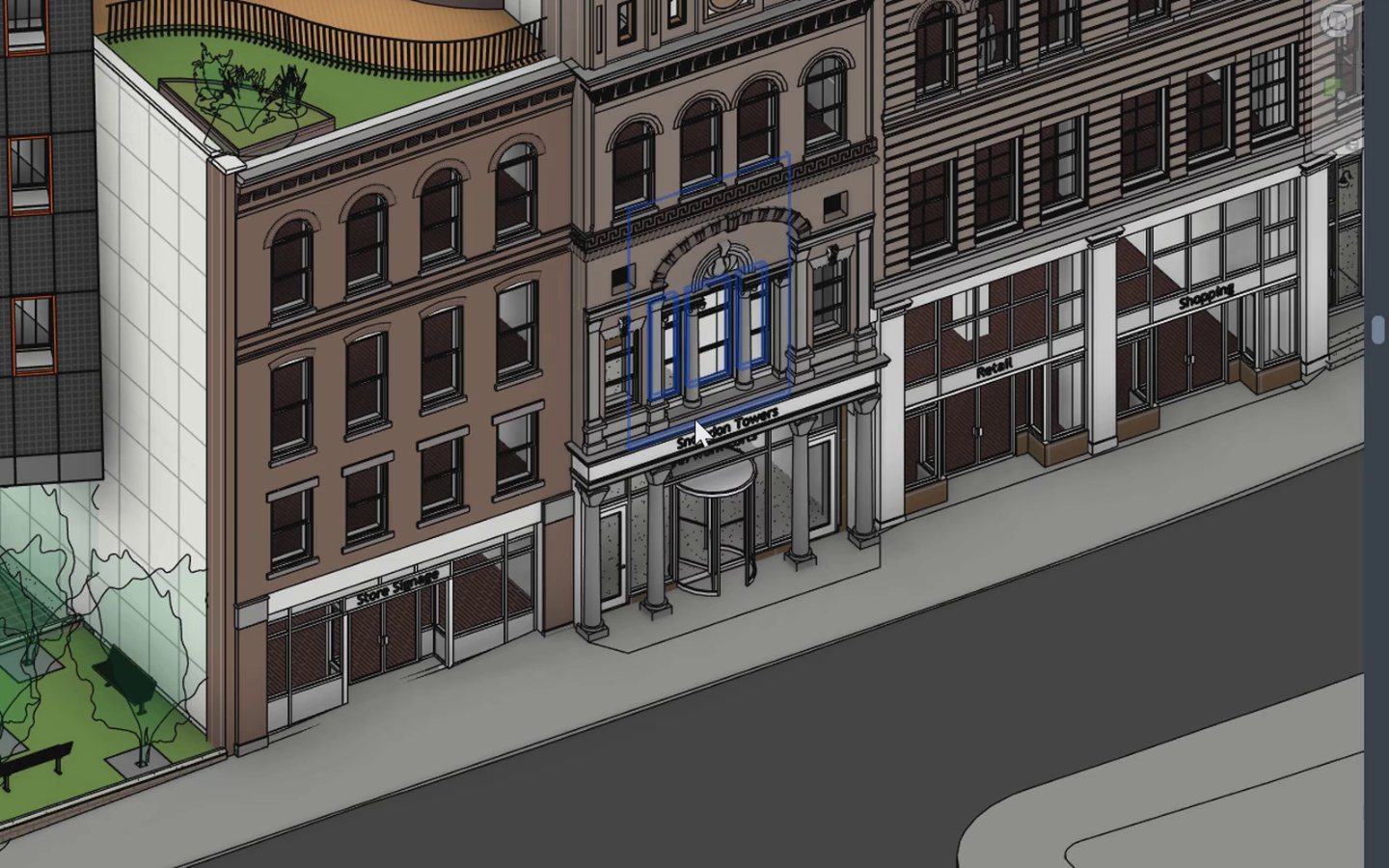
Press and hold anywhere, then flick.
Or press Ctrl or Shift while the ring is open.
The ring follows what you are doing.
Plans and sections, 3D views and sheets each have their own ring, with and without a selection. These are the rings as they come; every position can be changed.
Plan or section, nothing selected
- 1Reset Temp Hide
- 2Crop Region
- 3Temp View
- 4Reveal Hidden
- 5Default 3D
- 6Repeat Last
- 73D Snapshot
- 8Thin Lines
3D view, nothing selected
- 1Top View
- 2Restore 3D
- 3Rotate Right
- 4Section Box
- 5Elevation
- 6Temp View
- 7Rotate Left
- 8Reset Temp Hide
Something selected, any view
- 1Reset Temp Hide
- 2Edit Type
- 3Pin / Unpin
- 4Temp Isolate
- 5Selection Box
- 6More
- 7Same Type in View
- 8Temp Hide
Sheet, nothing selected
- 1Reset Temp Hide
- 2Zoom to Fit
- 3Reveal Hidden
- 4Default 3D
- 5Crop Region
- 6Thin Lines
More does something different for each kind of element: you choose, for example, Move to Room Reference for room tags. Select a viewport on a sheet and More becomes Crop Region for that view.
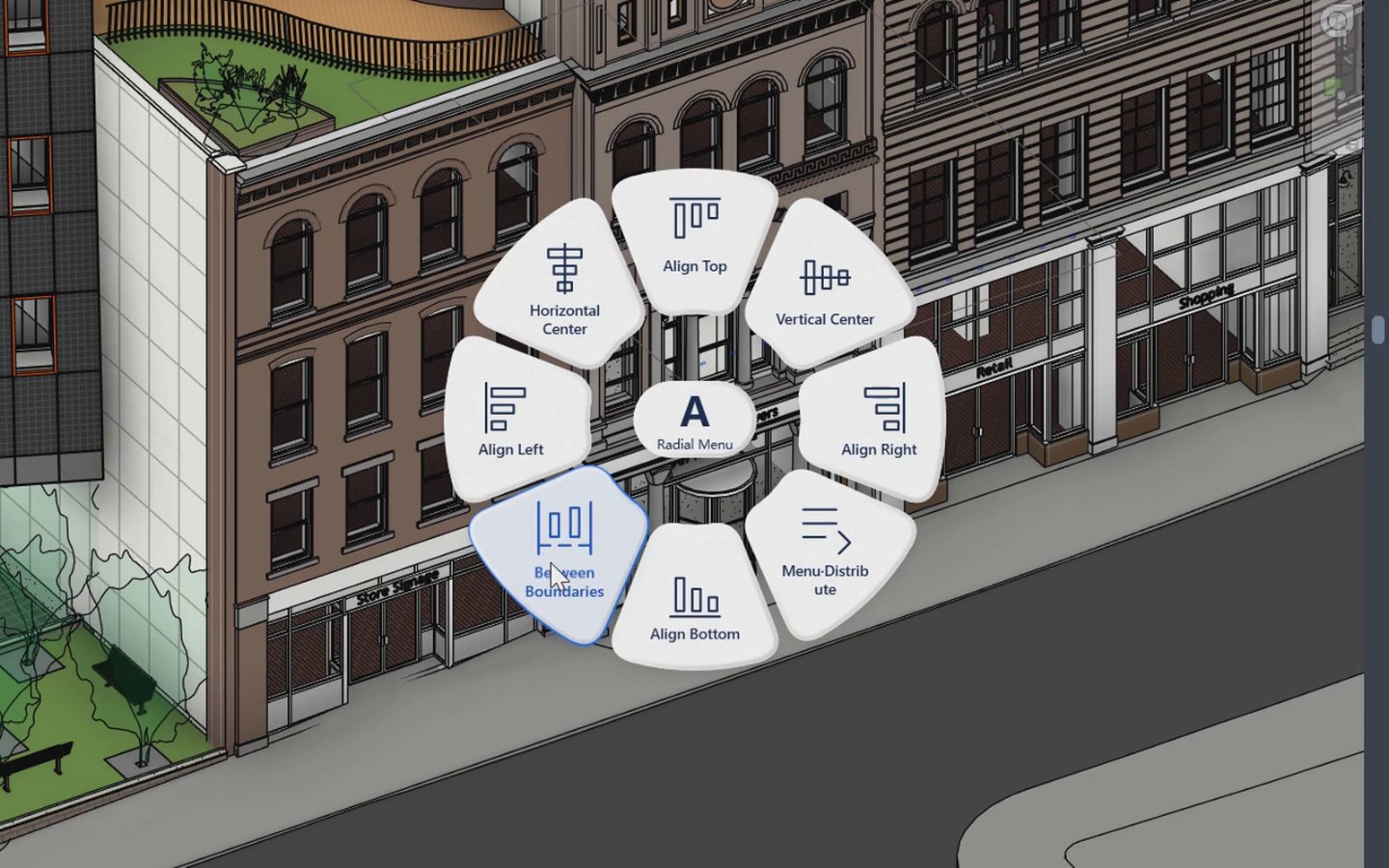
Hold a letter for a themed menu.
While the button is held, press a letter to switch rings, and press another to switch again. Revit never receives the key, so no Revit shortcut starts by accident.
What else it does
Ctrl for the variant, Shift for settings.
Every ring has three layers: press Ctrl while it is open and commands with a variant swap, such as Same Type in View to Same Type in Model. Press Shift and commands with settings show them instead, like Place Camera or 3D Snapshot.
Command Search.
Type part of a name to find Revit commands, NimDeck tools and every Radial action, each with where it lives. It also finds a command by its Revit keyboard shortcut, so typing VG finds Visibility/Graphics.
Repeat Last.
Runs your last command again, whether it came from the Ribbon, a shortcut, Command Search or the ring. A command you left midway still counts.
Your own commands, anywhere.
Any position can hold any Revit command that Revit lets add-ins run, any NimDeck tool, or a ring of your own. Drag one position onto another to swap them; changes are saved straight away.
Temporary colours with G.
Select elements, hold the button and G, and flick to red, yellow, blue or green to mark them while you work. The colours live in Temporary View Properties and are removed before every save or sync, so they never reach the central model.
Switches show their state.
The S ring holds Revit's own selection switches: Select Links, Underlay, Pinned, by Face and Drag on Selection. Each shows whether it is on the moment the ring opens.
Set it up once.
Click Radial on the Quick panel of the NimDeck tab; the choice is remembered the next time Revit starts. Size and feel live in Settings.
- Open with
- Side button 2 (default), side button 1, or a right-button drag
- Gesture distance
- 30–150 px: smaller is quicker, larger avoids accidents
- Menu size
- 40–150 %, scaling text, icons and spacing