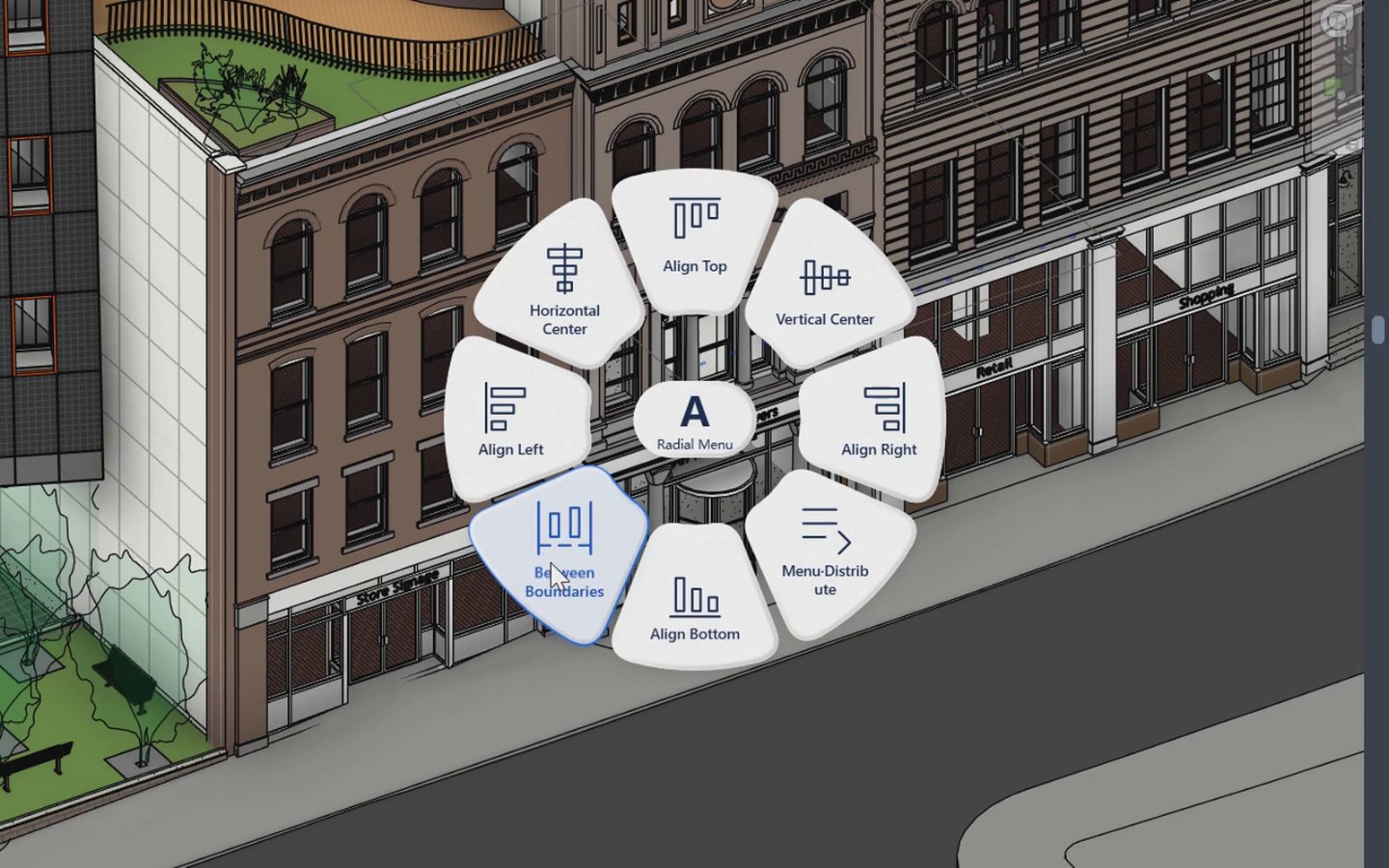

Align / Distribute
Line up and space selected objects in the current view: desks, tags, text, dimension lines, mullions and more. Select, pick a command, done; one Undo puts it back. Follow the notes, or just play.
These tutorials are made for a computer screen. On a phone you can look; to try them, open this page on a laptop or desktop.
Autodesk Revit 2025Office Fit-out.rvt
Modify
Pick
Floor Plan: Level 1
Floor Plan: Level 1 · 1:100
Ready
⊻ 0
How it works
- Align, Distribute and Between sit in the Modify panel. Run them with a selection, or start one with nothing selected, pick the elements, then click Finish.
- Align moves every object to the left, right, top, bottom or centre of the selection's overall bounds. Distribute keeps the two end objects fixed and gives the ones in between equal centre distances or equal clear gaps (gaps count each object's width). With only two objects there is nothing to distribute, so nothing happens.
- Ctrl+click a command (marked ●) to pick a key object first: Align lines up on the key, Distribute keeps the key fixed and keeps the original span, so end objects may move. The Specify commands also pick a key, then ask for the gap or centre distance in project units.
- Between: pick two fixed boundaries (a straight edge, line, or a flat face such as a wall end) across the distribution direction. All selected objects can move; every clear gap, including both outer margins, comes out equal. One object is enough.
- Tags move by their head; leader ends stay attached. Dimension lines move only across their measuring direction (Up/Down for horizontal strings) and must be arranged on their own. Pinned objects that would need to move stay in place and are reported; the others keep their planned positions.
- Success is silent: no preview, no message. Failures explain why in a dialog and nothing moves. One Undo restores the whole operation.